
How to submit German Intrastat reports through eSTATISTIK.core

Intrastat.ai Editorial Team
This manual takes you from a prepared reporting file to a checked submission record in eSTATISTIK.core. It covers German Intrastat reporting to Destatis, including teams working in English. Submissions to other countries' authorities follow separate procedures. Official scope of German Intrastat reporting.
Before you start
Keep the following together in a working folder:
- Your .CORE login details and the responsible person's contact information.
- The reporting company, reference month, and trade flow: arrivals or dispatches.
- The approved reporting file and a reconciliation of its record count and totals.
- A place to save validation results and the final submission protocol.
Use a recognizable internal file name, for example intrastat-de-2026-10-dispatches-v1.xml. This is an organizational suggestion, not an official naming requirement. Confirm your reporting obligations and deadline against the 2026 Intrastat guide.
1. Obtain a .CORE account
If you do not have access, open the portal and choose Weiter zur Registrierung. Complete the registration form. Credentials are sent by post, so allow time before your first deadline. A delivery marked as Test does not replace a real declaration. Official account and test-delivery guidance.
Assign an owner for receiving the letter and storing access details so registration does not become a last-minute task.
2. Sign in to the portal
Open eSTATISTIK.core. Enter your user identifier in Kennung, your password in Passwort, and choose Anmelden. Reload the page if login has timed out. Use Zugangsdaten vergessen? for account recovery.
The menu labels below remain in German so you can match the instructions to the screen.
3. Select the correct file route
.CORE supports INSTAT/XML, DatML/RAW, and a CSV workflow. Use a reporting export intended for your selected format; changing a spreadsheet's extension to .xml does not create one. Official reporting-format overview.
Compare the file's company, month, flow, record count, and totals with the approved working data. For XML, continue below. For CSV, use the separate route described later.
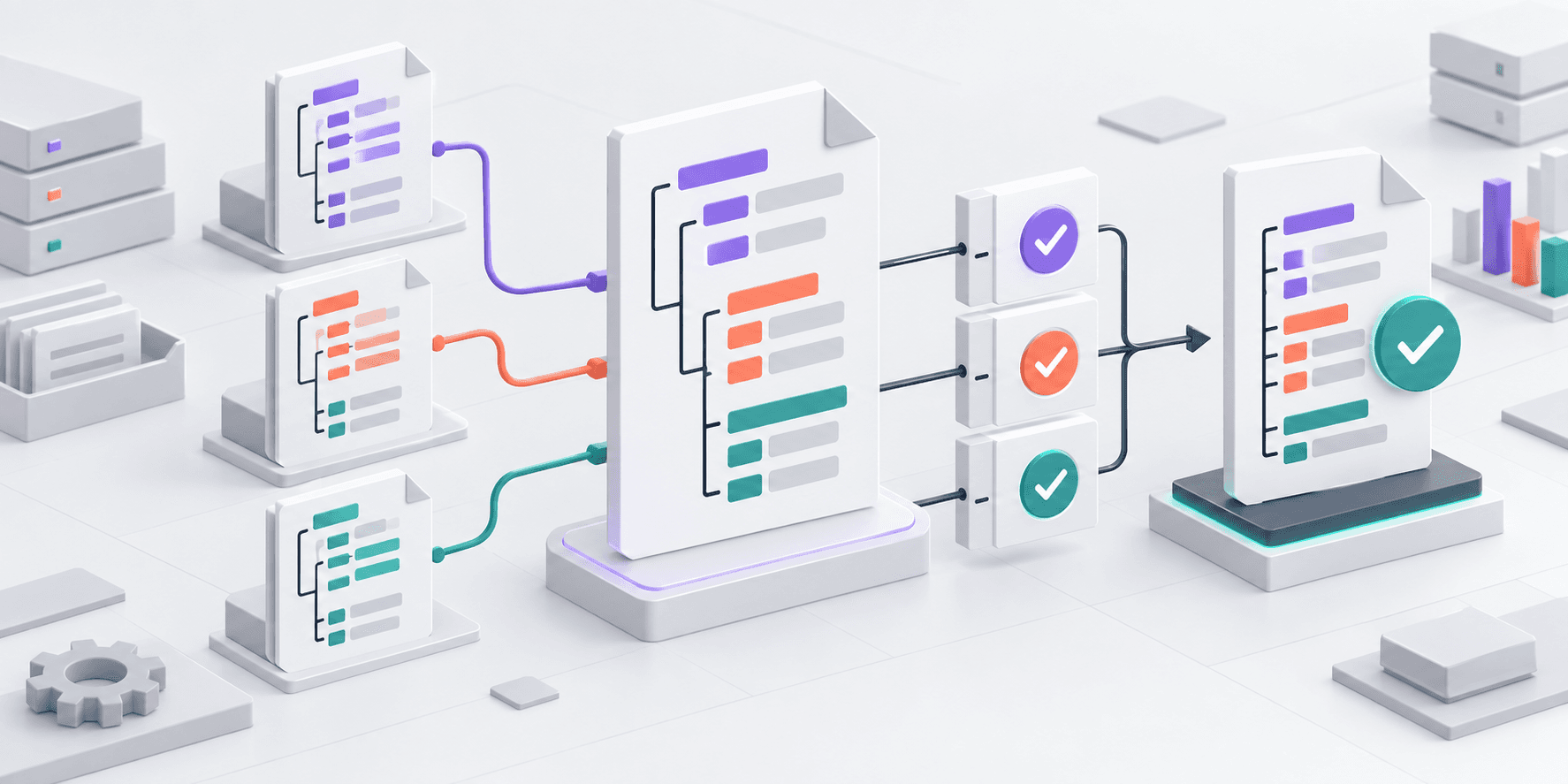
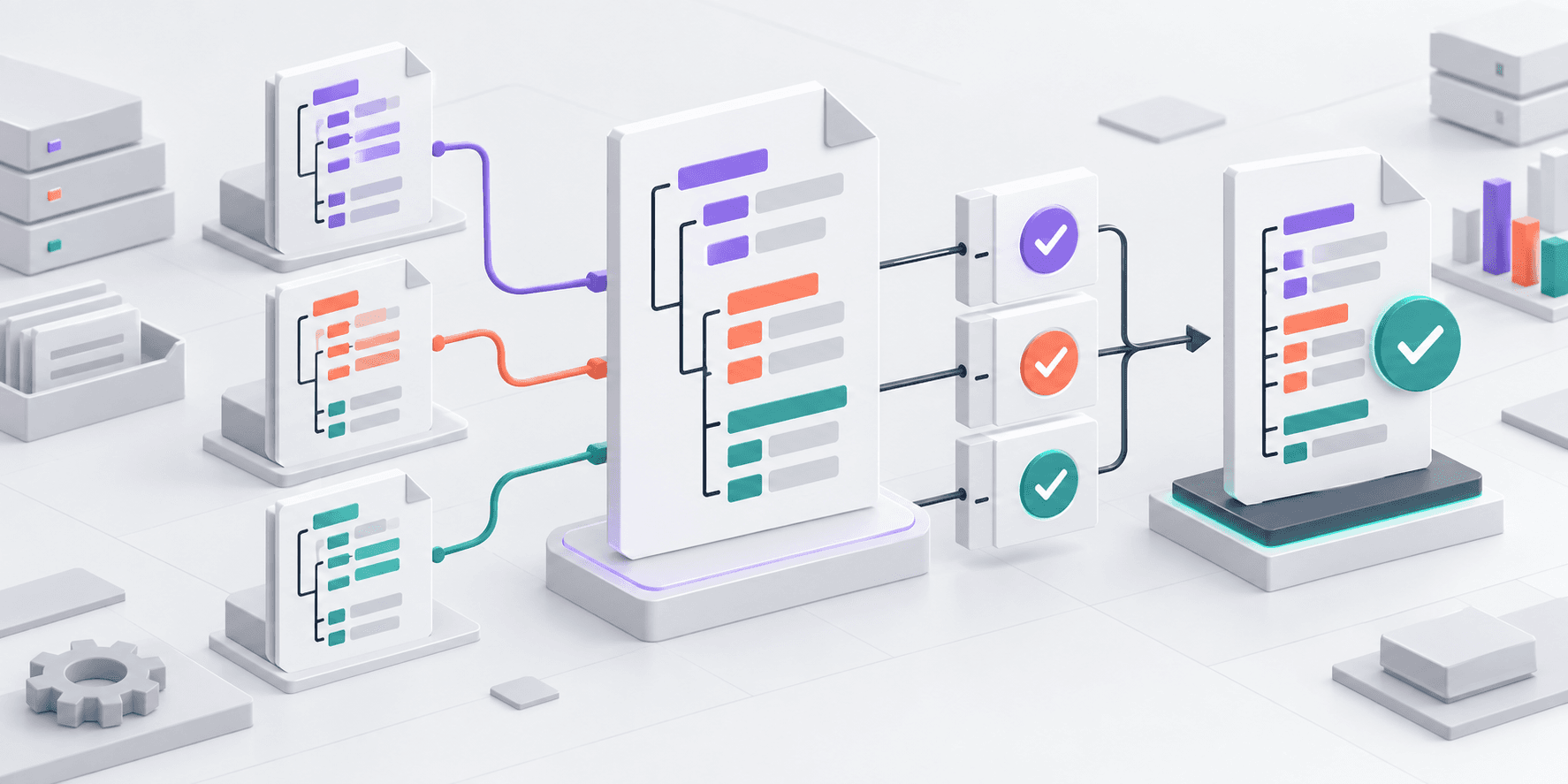
4. Run a pre-submission check
- Open Lieferung prüfen — check delivery.
- Select your XML file with the file picker, typically Durchsuchen.
- For DatML/RAW, choose Standard for the normal delivery checks.
- Run the check and inspect its result. This check alone does not submit a declaration. Official XML checking instructions.
Correct errors in the source data or export configuration, generate a new file, and check again. Keep the approved version separate from rejected exports to avoid choosing an older file later.
5. Send the production file
Open Lieferung senden, select the approved file, and complete the send action. This transmits a valid INSTAT/XML file to Destatis. Official INSTAT/XML submission guidance.
Confirm that neither the file nor the delivery is marked as a test. Treat this action as a real submission: the earlier check was only preparation.
6. Inspect the protocol and keep the evidence
Open Lieferungen anzeigen — display deliveries — and locate the delivery you just sent. Open its protocol and review its status and errors. The delivery history provides submission-status information. Official delivery-history documentation, section 8.2.
Save the protocol beside the submitted file and reconciliation. Record the displayed delivery reference, reporting period, submitter, and date. If the connection drops, inspect the history before deciding whether another transmission is necessary.
If your starting file is CSV
Choose Lieferung erstellen. Select the survey and period, supply the reporting-party and recipient details, and map the CSV fields in the wizard. This creates a DatML/RAW delivery. Review the mapping before sending. Official CSV wizard manual.
Check separators, header handling, leading zeros, and numeric formats against your export. Reconcile imported records with the original file before treating the mapping as reusable.
Troubleshooting and follow-up
- INSTAT/XML error positions look unfamiliar: conversion can shift error positions. Pre-check the original file to locate the record. Official conversion-error explanation.
- Messages mention
partnerID,declarationTypeCode,Address, or test data: consult the matching entry in the official INSTAT/XML FAQ and give your software administrator the exact message. - An accepted declaration needs changing: follow the official correction instructions. Do not assume resending the entire file replaces the earlier submission.
- You need help: the official contact directory distinguishes .CORE technical issues from Intrastat file-reporting questions. Provide the delivery reference and error text, without your password.
Before closing the task, confirm the company, month and flow; verify that you sent a production delivery; review its protocol; and save the evidence. A technical check complements your team's own review of the reporting data.
Related articles
More practical guides for accurate, efficient, and country-ready Intrastat reporting.